
How to Use Local AI with Ollama
Discover how to run AI locally with Ollama for enhanced data security and control. Learn to build your own knowledge base, integrate models like Mistral and LLaMA, and automate processes with tools such as n8n and Page Assist.
In a world where Artificial Intelligence (AI) is increasingly integrated into our daily lives, most available solutions rely on cloud infrastructure. However, for those seeking greater security and control over their data, running AI models locally presents an compelling alternative. In this article, I will discuss two fundamental options for leveraging Ollama to deploy AI on your own machine, highlighting its security advantages, practical applications, and how to create a personalized knowledge base.
What is Ollama?
Ollama is a platform that enables running AI models locally without relying on cloud servers. This means you can process information directly on your device, ensuring enhanced privacy and control over your data. It’s an ideal solution for those working with sensitive information or simply wishing to avoid sharing data with third parties. It is an Open Source tool, and the models you can utilize are those available under that paradigm.
Some of the models you can execute with Ollama include:
- Mistral: Excellent for text generation tasks with high performance in Spanish and other languages.
- LLaMA: A versatile open-source model suitable for summarization, translation, and conversational assistance.
- Deepseek: Designed for advanced data analysis and deep language comprehension tasks. (They have a special version called deepseek-coder that can also generate code for different programming languages).
- Phi: Specialized in compact and efficient models, ideal for devices with limited resources.
Each of these models offers specific advantages depending on the use case, allowing you to select the optimal option for your requirements.
Advantages of Using Local AI
1. Security and Privacy
By executing AI on your own machine, you reduce the exposure of your data on third-party servers. This is particularly relevant for businesses or professionals handling confidential information. Furthermore, this enables working completely offline, ensuring no sensitive information leaves your local environment and guaranteeing access to AI tools even in locations without connectivity.
2. Internet Independence
You don’t need to be connected to perform AI tasks, allowing the use of these tools even in environments with limited connectivity.
3. Cost Reduction
You avoid subscriptions to cloud services, which can represent significant long-term savings. However, it’s important to note that running models locally may not be as fast as in the cloud, as remote servers are optimized for such tasks. Nevertheless, for moderate usage, the performance will be adequate and will offer enhanced privacy and data control.
4. Speed and Optimization
Depending on your hardware, running models locally can be faster than sending requests to a remote server.
Practical Use Cases
Executing AI locally opens up a spectrum of possibilities for improving productivity and optimizing daily tasks. Some practical uses include:
1. Personalized Virtual Assistants
You can train models to act as personal assistants that answer questions about your documents, files, or databases without compromising privacy.
2. Process Automation
From content generation to automatic transcription and translation, you can optimize various daily tasks without relying on external services.
3. Data Analysis and Reporting
AI models can assist you in analyzing data and extracting key information in real-time, enabling more informed decision-making.
4. Cybersecurity Enhancements
Some implementations can detect suspicious pattern analysis in networks or files, thereby enhancing cybersecurity.
Building Your Own Knowledge Base
One of the greatest benefits of running AI locally is the ability to construct your own Knowledge Base. This is achieved by feeding a model with relevant information, enabling it to answer specific questions about internal documents, files, and business data. AI models are trained to understand specific domains; fundamentally, they can comprehend our expressions, make inferences, summarize content, and generate results based on that knowledge, but it’s always “generic.” However, by feeding them our documents, we create our own specialized knowledge base, where we could even teach them to express themselves as we normally would, or to answer questions specific to our work, our company, or even our upbringing.
This is one of the significant advantages; it transforms into your personalized “expert.” Another benefit is that models only retain the information they received during training; with this approach, they can be updated and augmented with more current information.
Steps to Create Your Knowledge Base with Ollama
- Install Ollama
- Download and install Ollama according to your computer’s operating system.
- Ensure you have sufficient disk space and a GPU if you desire hardware acceleration.
- Select and Train a Model
- Use pre-trained models or fine-tune one according to your needs. Ollama offers an extensive library of available models.
- Your primary limitation will be dictated by your computer’s memory capacity and processor. While a sufficiently powerful GPU (e.g., in Gaming PCs) could enable running more complex models, for general text manipulation, models like Llama, Phi, or Mistral are generally sufficient.
- Feed the model with key documents in formats such as PDF, TXT, or JSON so it can respond accurately. You can use text processing tools to extract relevant information and structure it into a local database that the model can query. (This is significantly easier with the two tools I will explain later).
- Integrate with Local Tools
- You can connect it with tools such as notes, databases, or document managers. For instance, you can use n8n to automate the update of your knowledge base by extracting information from emails, files, or APIs and feeding it to Ollama in a structured manner. Additionally, you can integrate Ollama with Chrome plugins to process and summarize web page information directly from the browser.
- Upon installation, Ollama operates from the console or via APIs, which may not be the preferred method for most users. To learn how to leverage it without complications, keep reading ;)
- Optimize and Improve the Model
- Adjust the training database based on the responses you obtain.
Remote Access to Your Local Server
If you wish to access Ollama from other devices or environments, you can utilize tools like Msty.app and Page Assist.
- Msty.app: It allows simple access to your local server. It’s an application available for Windows, Linux, and Mac that can connect either with models available on the internet (ChatGPT, Grok, etc.) or directly with Ollama. Once installed, it automatically detects Ollama and provides an interface very similar to ChatGPT.
- Page Assist: A Chrome plugin that allows you to use Ollama from your browser to ask questions as if it were ChatGPT. It also has a significant advantage: you can open PDFs or navigate to any webpage and use the content of that document as “context” to provide to the AI, enabling it to answer your questions based on what you are reading, or even translate it if applicable.
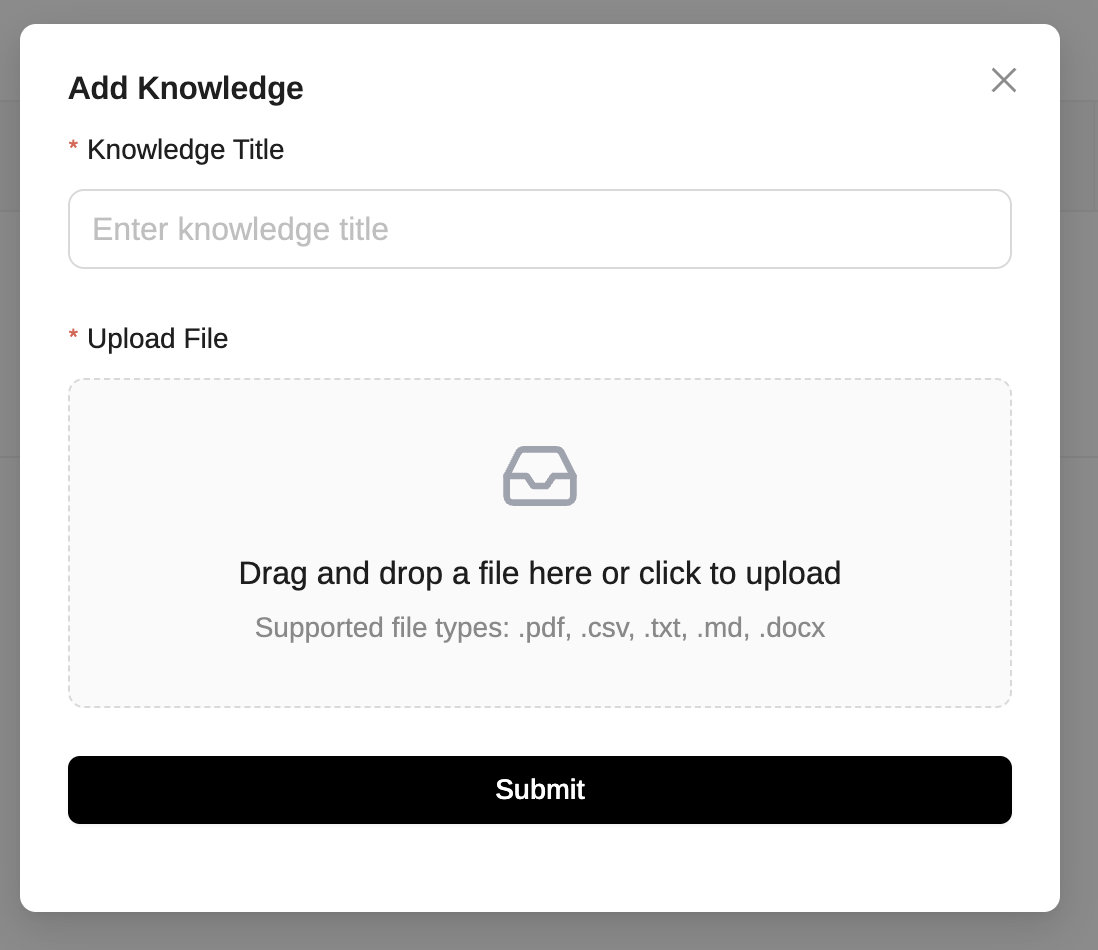
These tools expand Ollama’s utility; both allow you to add documents to be used as a knowledge base for asking questions. These can range from PDFs to your own notes, which serve to define the guidelines the AI will use to respond, and can be utilized with different models.
Conclusion
Utilizing local AI with Ollama not only provides a more secure and efficient alternative but also allows for customizing the technology to our specific needs. In a world where privacy and information control are increasingly relevant, this solution represents an attractive option for individuals and enterprises looking to harness the power of AI without compromising their security.
If you wish to start experimenting with local AI, Ollama is an excellent starting point. Explore its capabilities and discover how AI can work for you!